Connect LinkedIn
Optimize plan and above
One LinkedIn connection sets up two things:
- Spend comes in. Numbat imports what each campaign costs, so Ad Campaigns shows spend beside the traffic it bought.
- Ad Signals go out. Numbat sends LinkedIn one server-side conversion,
Numbat_Engagement, for each visitor who reaches the engagement level you choose. Each visitor is sent once.
Both use the same LinkedIn ad account. You do not create a conversion in Campaign Manager. Numbat creates it and attaches your campaigns.
Before you begin
- Ad spend import and Ad Signals on your plan. See Plans and limits. Without Ad Signals, steps 1 and 2 connect spend only.
- A Numbat role that can edit site settings. A Workspace Member cannot.
- A LinkedIn login that can open the ad account. For signals, its role on the account must be Account Manager, Campaign Manager, Creative Manager or Billing Admin. LinkedIn does not let a Viewer send conversions.
Numbat only reads your campaigns, adds one conversion and attaches your campaigns to it. It never changes your ads, budgets or bids.
1. Connect LinkedIn
-
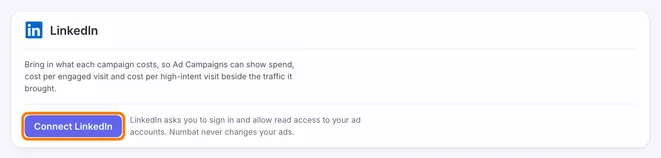
Choose Connect LinkedIn.
-
Sign in to LinkedIn with a login that can open the ad account.
-
LinkedIn asks to let Numbat read your ad accounts. Approve it.
LinkedIn then returns you to Numbat.
2. Pick the ad account
If your login reaches one ad account, Numbat picks it and you skip this step.
If it reaches several, Numbat asks Which ad account runs the ads for this website? Pick one, then choose Use and its name.
If the list is empty, the login reaches no ad account. Sign in as someone who can open it, or ask the account’s owner to add you in Campaign Manager.
The panel now shows the account. Spend reads Importing the last 90 days, then Updated and when.

3. Set up Ad Signals in Numbat
These settings apply to every ad platform. Skip this section if you set them for another platform already.
-
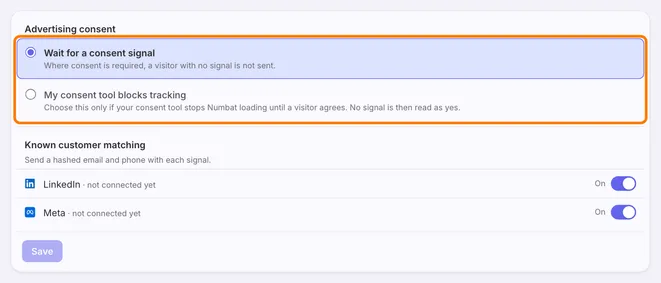
Open Consent and matching in Numbat Under Advertising consent, pick an option. Signals cannot turn on until you do. Consent and emission explains the two options.
-
Under Known customer matching, leave the LinkedIn switch on and choose Save. It sends a hashed email for identified visitors, so LinkedIn can match people who never clicked an ad.

-
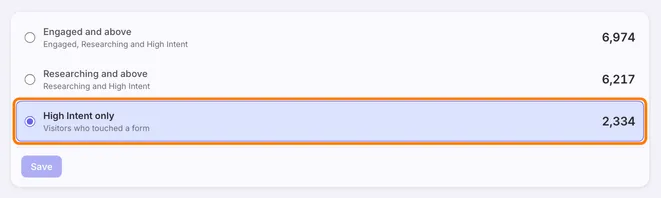
Open Who counts in Numbat Pick the engagement level that counts as a conversion, and choose Save. The default is High Intent only. Each option shows how many visitors reached it in the last 14 days.
4. Turn on signals
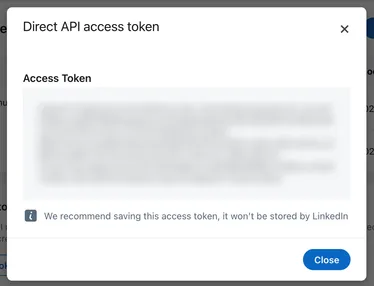
LinkedIn shows the access token only once, so keep the Numbat tab open while you make it.
-
Open LinkedIn in Numbat Under Signals, choose Open the Direct API page. Campaign Manager opens in a new tab, on the ad account you picked.
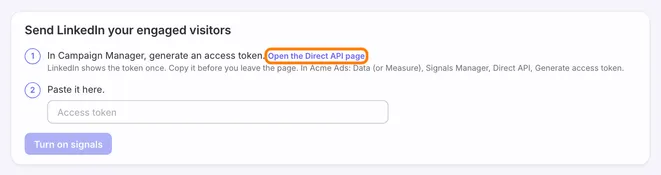
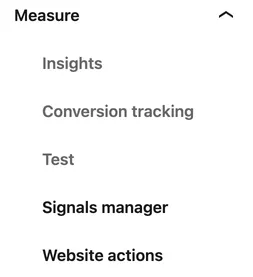
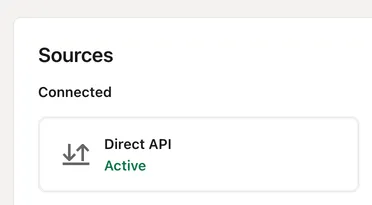
If the link does not open the page, open Measure > Signals manager in Campaign Manager and choose Direct API under Sources. Some accounts show the menu as Data.
-
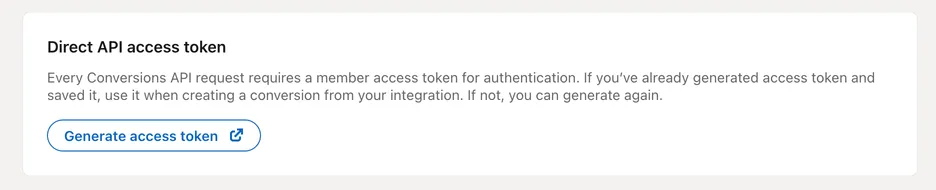
In Campaign Manager, choose Generate access token and copy the token before you close the dialog. LinkedIn does not store it. The token does not expire.
-
In Numbat, paste the token under Paste it here and choose Turn on signals.
Numbat checks that the token reaches the ad account. It then adds a
conversion named Numbat_Engagement to the account, or uses the one
already there, and attaches every campaign to it. Sending starts now.
Visitors who qualified earlier are not sent.
Check that it works
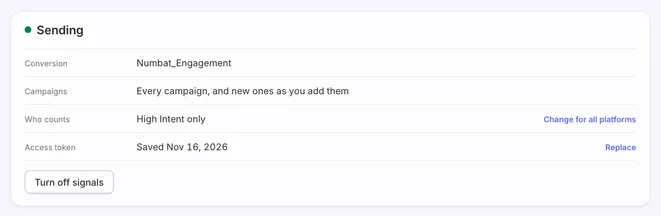
The Signals card reads Sending, with when the last one went.
| What | Where | When |
|---|---|---|
| Sent by Numbat | The LinkedIn row on Ad Platforms | Within minutes of a visitor qualifying |
| Received by LinkedIn | The status and count of Numbat_Engagement on the conversion tracking page in Campaign Manager |
Up to a few hours |
| Matched by LinkedIn | Its match rate on the same page | Only with real ad-driven visitors |
LinkedIn counts a conversion only when it can match the visitor to a member.
New campaigns
This needs nothing from you. Every hour, Numbat attaches the campaigns you
added since to Numbat_Engagement.
Change the ad account
Under the account’s name, choose Change ad account and pick another. Spend moves at once. Signals move within the hour, when the saved token reaches the new account.
When the token does not reach it, signals stop and the Signals card asks for a token made in the new account. Paste one to turn them on again.
Turn signals off, or disconnect
- To pause, choose Turn off signals. Spend keeps importing. Visitors who qualify while signals are off are not sent later.
- To end the connection, choose Disconnect. Spend stops updating and
signals stop sending. Spend imported so far is kept, and
Numbat_Engagementstays in LinkedIn with its history.
If you set LinkedIn up before November 2026
You created the conversion yourself and pasted its ID. Those signals keep sending as they are, to the conversion and the ad sets you chose. Choose Connect LinkedIn to bring in spend as well.
The Signals card keeps its Edit details button. To change the token, choose Edit details, then Replace token. Numbat does not attach new campaigns to a conversion you made, so attach each new ad set to it in Campaign Manager.
Troubleshooting
“This token cannot use” the ad account
The token was made by someone who cannot open the ad account you picked. Generate it while signed in to LinkedIn as someone with access to that account, then paste the new one.
“LinkedIn did not accept this token”
The token was copied in part, or it was revoked. Generate a new one in Campaign Manager and paste it.
“LinkedIn refused the saved access token”
Sending pauses and waiting visitors are kept. Beside Access token, choose Replace, paste a new token and choose Save token.
If it was a permission error, give the token’s owner a role above Viewer on the ad account in Campaign Manager.
The connection says “Stopped”
LinkedIn refused the token. Sending pauses and waiting visitors are kept. Replace the token as above. For a setup made by hand:
- Choose Edit details and enter the token again. Check it was made for this ad account.
- Choose Save details, then Turn on signals. LinkedIn has no test mode, so this sends one real conversion. It matches nobody, but it stays in your LinkedIn reporting.
“LinkedIn stopped accepting this connection”
The LinkedIn sign-in expired or was removed, so spend is not updating. Choose Reconnect LinkedIn and sign in again. Spend imported before then is kept. Signals use the access token, so they keep sending.
The setup check says the conversion rule was likely deleted
LinkedIn accepts conversions for a deleted rule and counts none of them. Beside Access token, choose Replace and paste a token. Numbat then adds a new conversion. For a setup made by hand, create a new conversion in Campaign Manager and enter its ID.
That conversion rule was not found
This applies to a setup made by hand. Check the Direct API conversion ID against the ID under the rule’s name in Campaign Manager, then save again.
This rule does not accept streamed conversions
This applies to a setup made by hand. The rule’s data source must be Direct API. Create one and use its ID.
The rule belongs to a different ad account
This applies to a setup made by hand. Check the number after /accounts/
in the Campaign Manager URL while the rule is open.
No ad sets are attached to the rule
Nothing records until a campaign is attached. Numbat attaches them within the hour. For a setup made by hand, attach at least one ad set to the rule in Campaign Manager.
This rule counts repeat conversions separately
This applies to a setup made by hand. Purchase and Add to cart rules count every repeat. Use another category, such as Other.
Next steps
Checked against LinkedIn Campaign Manager, October 2026.