Connect Meta
Optimize plan and above
Numbat sends Meta one server-side event, Numbat_Engagement, for each
visitor who reaches the engagement level you choose. Each visitor is sent
once. You then make the event a custom conversion, so campaigns can
optimize toward it.
- Get the dataset details in Meta
- Connect the dataset in Numbat
- Set up Ad Signals in Numbat
- Turn on signals
- Create the custom conversion in Meta
Before you begin
- The Optimize plan or above.
- A Numbat role that can edit site settings. A Workspace Member cannot.
- Access to the Meta dataset, with permission to generate a Conversions API token. See Meta’s guide to getting started with the Conversions API.
1. Get the dataset details in Meta
You need three values: the Dataset ID, an access token and a test event code.
-
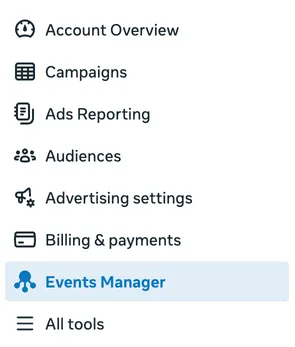
In Meta Ads Manager, open Events Manager from the menu.
-
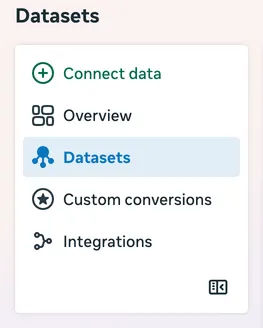
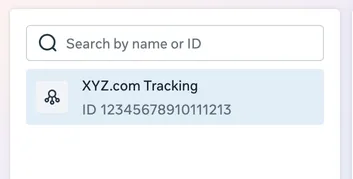
Choose Datasets, then select your dataset.
-
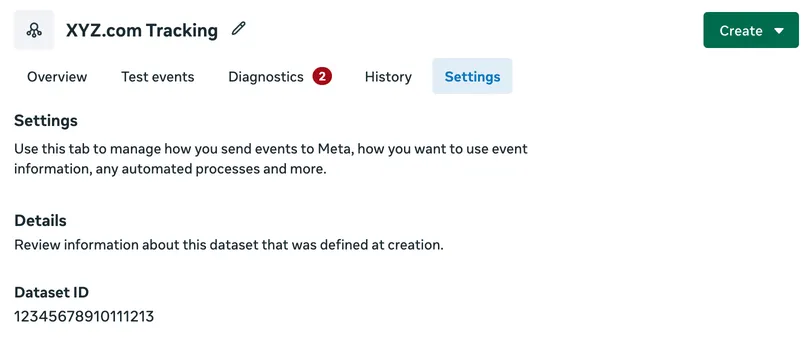
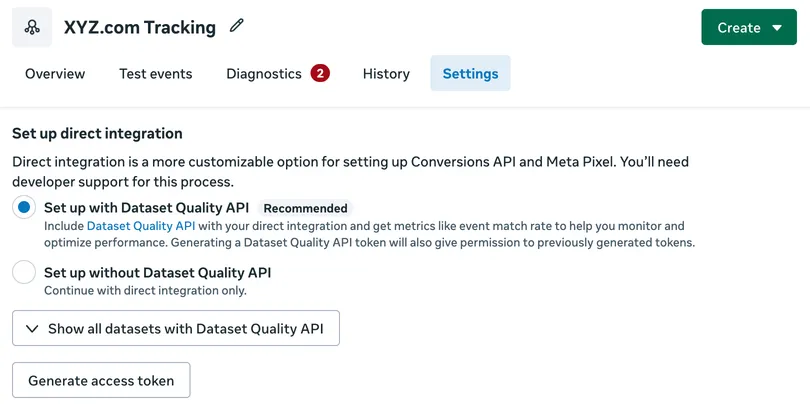
On the Settings tab, copy the Dataset ID. Meta may call it the Pixel ID.
-
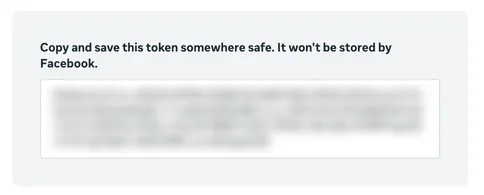
On the same tab, under Set up direct integration, choose Generate access token. Either option above the button works. Copy the token now. Meta shows it only once.
-
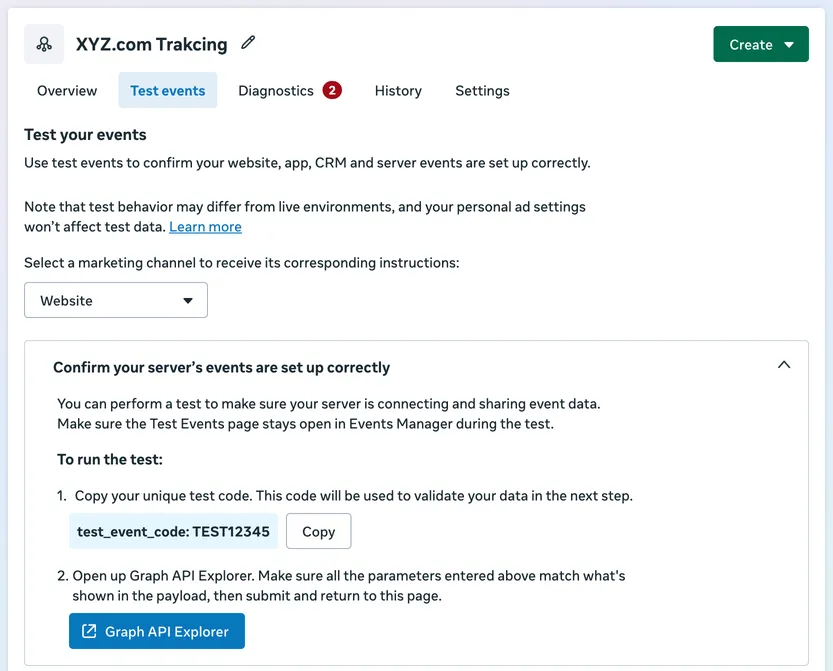
Open the Test events tab and copy the Test event code. Leave this tab open. Numbat’s test event only shows while it is open, and the code changes each session.
2. Connect the dataset in Numbat
-
Open Ad Signals in Numbat Choose Connect Meta.

-
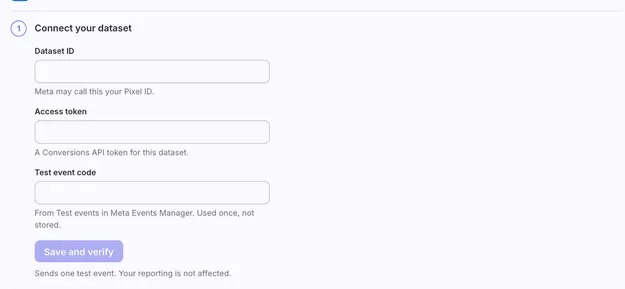
Under Connect your dataset, enter the three values.
-
Choose Save and verify. Numbat sends one test event. Nothing reaches your reporting.
-
On the Test events tab, the event appears as
Numbat_Engagementfrom Server. It shows only Click id and User agent. That is expected, since it matches no real person.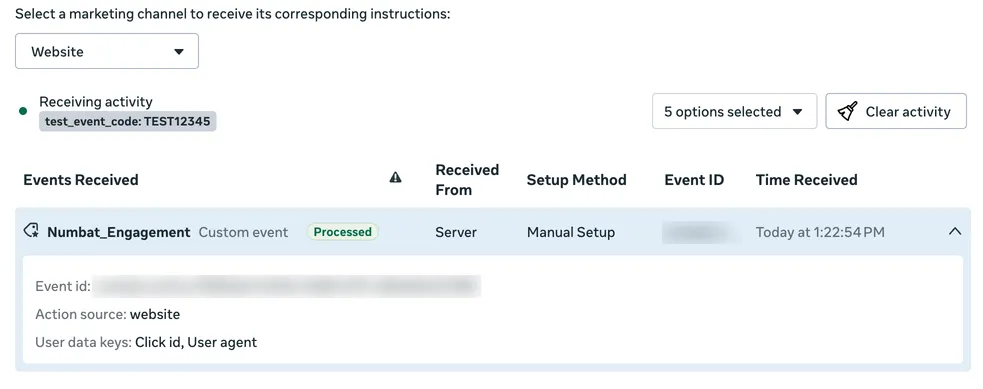
If verification fails, the Meta page says why. Fix it (see Troubleshooting), choose Edit on Connect your dataset, and verify again with a fresh test event code.
3. Set up Ad Signals in Numbat
These settings apply to every ad platform. Skip this section if you set them for another platform already.
-
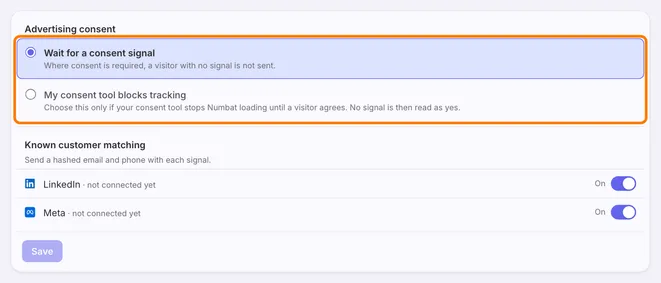
Open Consent and matching in Numbat Under Advertising consent, pick an option. Signals cannot turn on until you do. Consent and emission explains the two options.
-
Under Known customer matching, leave the Meta switch on and choose Save. It sends a hashed email and phone for identified visitors, so Meta can match people who never clicked an ad.

-
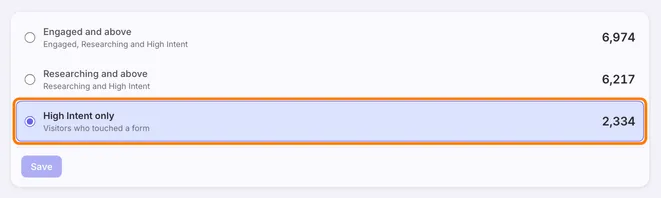
Open Who counts in Numbat Pick the engagement level that counts as a conversion, and choose Save. The default is High Intent only. Each option shows how many visitors reached it in the last 14 days.
4. Turn on signals
-
Open the Meta page in Numbat Or choose Continue setup beside Meta on Ad Signals.
-
Choose Turn on signals. If the button is unavailable, a note in the step says what to fix. Sending starts now. Visitors who qualified earlier are not sent.
-
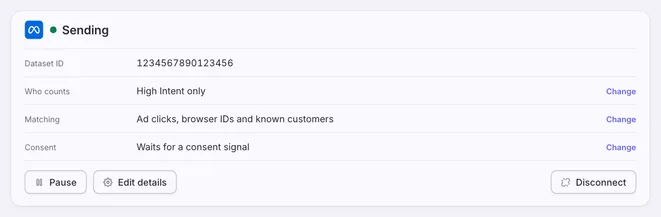
The page shows Sending, with a reminder to create the custom conversion. Choose Done on it once you have.

The first time you turn signals on, Numbat sends one sample event so
Numbat_Engagement appears in Meta’s event list. It describes no visitor
and carries no personal data, and it stays in your Meta event data.
5. Create the custom conversion in Meta
-
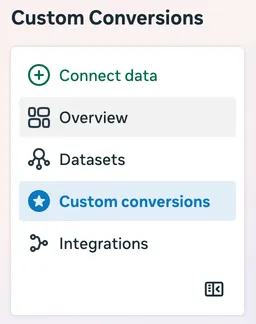
In Events Manager, choose Custom conversions.
-
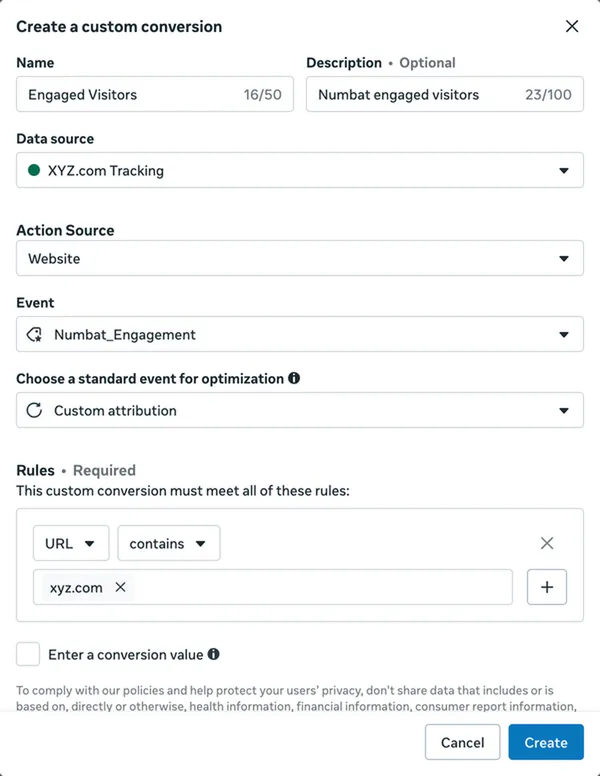
Choose Create custom conversion.
-
Under Name, enter a name you will recognize, such as Engaged Visitors. Description is optional.
-
Under Data source, pick your dataset.
-
Set Action Source to Website.
-
Set Event to
Numbat_Engagement.Note. The event can take up to an hour to appear, depending on your traffic. If it is not listed, wait and reload Events Manager.
-
Under Choose a standard event for optimization, choose Select your own category, then Custom attribution.
-
Under Rules, choose URL and contains, then enter your domain, such as
example.com. For more than one domain, add each as another keyword in the same rule.Warning. Use your whole domain, not a single page. Numbat sends conversions from every page of your site, so a rule for one page misses them.
-
Leave Enter a conversion value unchecked.
-
Choose Create.
Check that it works
The Meta row on Ad Signals counts visitors sent in the last 14 days, within minutes of each one qualifying.
In the dataset
On the dataset’s Overview, Numbat_Engagement shows as Active through
the Conversions API. Meta can take up to 20 minutes to show server events.
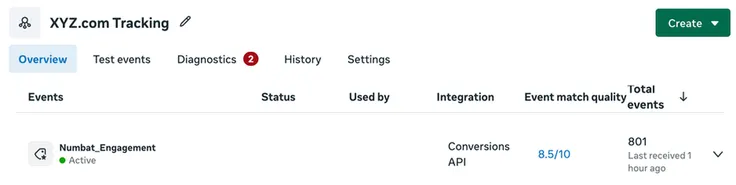
A received event is not a matched one. The event match quality score shows how well Meta matches them, and it fills in only with real ad-driven visitors.
In the custom conversion
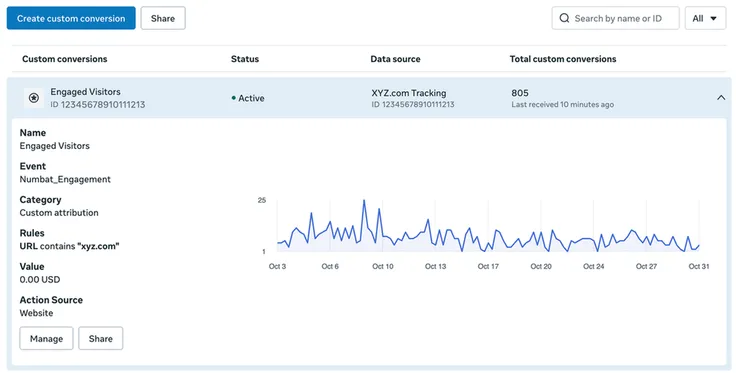
Under Custom conversions, yours shows as Active with its total conversions. It records only matched events from real visitors.
Troubleshooting
Verify fails with a permission error
The token cannot write to this dataset. Generate it from this dataset in Events Manager, or give its system user access in Business settings. Then save again.
Verify fails with an invalid token
Check the token is for this dataset and has not expired, then save again.
Verify reports no events received
Use the current test event code, and keep the Test events tab open while you verify.
Numbat_Engagement is missing from the custom conversion picker
Meta lists live events only. It can take up to an hour after you turn signals on. Reload Events Manager.
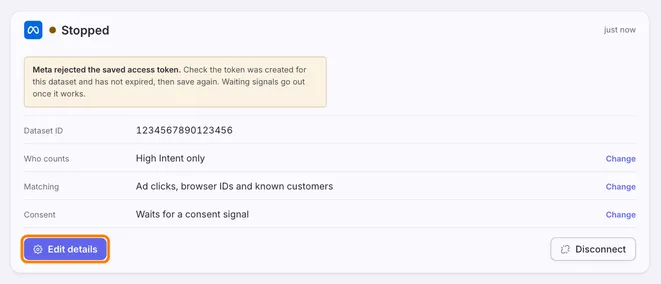
The connection says “Stopped”
Meta refused the saved token. Sending pauses and waiting visitors are kept. Choose Edit details, enter a new token and choose Save and verify. Saving without verifying does not resume sending.
Next steps
Checked against Meta Events Manager, October 2026.