ChatGPT Ads
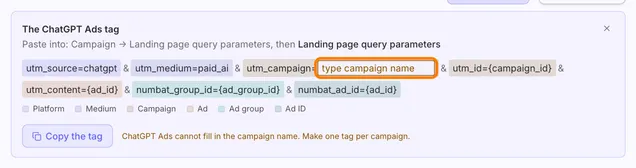
ChatGPT Ads fills in the IDs on each click, but not the campaign name. You type the name into the string once for each campaign.
Before you begin
- Access to edit campaigns in ChatGPT Ads.
- Tag your ads explains each parameter.
1. Copy the string
utm_source=chatgpt&utm_medium=paid_ai&utm_campaign=MANUAL_CAMPAIGN_NAME&utm_id={campaign_id}&utm_content={ad_id}&numbat_group_id={ad_group_id}&numbat_ad_id={ad_id}Replace MANUAL_CAMPAIGN_NAME with the campaign’s name. Use + for a
space, for example Spring+Sale.
You can also get the string in Numbat. Open Advertise > UTM Tagging and choose Get the tag for ChatGPT Ads. Type the campaign name into the box and copy the finished string.
utm_medium is paid_ai, not cpc. ChatGPT Ads has several buying
models, so cpc would split your traffic as you change objective.
2. Paste it into the campaign
-
Open the campaign’s menu and choose Edit campaign.
-
Paste the string into Landing page query parameters, then save.
Repeat for each campaign, with that campaign’s name in the string.
Ad groups show in Numbat by ID. To see their names, add numbat_group=
and the name to each ad group’s Landing page query parameters, for
example numbat_group=Spring+Retargeting.
3. Check that it works
- Click one of your ads. The landing page URL should show the campaign name, and numbers where the macros were.
- Open Advertise > UTM Tagging in Numbat. A click shows there up to 30 minutes after the visit ends. The headline gives the share of paid clicks with a correct tag.

Troubleshooting
Every campaign shows as MANUAL_CAMPAIGN_NAME
The campaign name was not typed in. Replace the words with the campaign’s name in that campaign’s parameters.
Some ads arrive tagged and others do not
A parameter set on an ad group or ad overrides the campaign’s. Look for a leftover value set lower down.