HubSpot
Attribute plan and above
Connect HubSpot to see contacts created, lifecycle changes and deals won or lost against the paid traffic that led to them. Numbat reads contacts, companies and deals. It writes nothing to HubSpot unless you turn on writing to contacts.
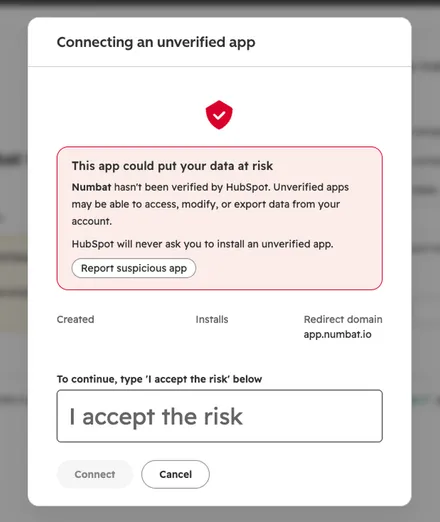
Note. The HubSpot integration is in beta. The Numbat app is not in the HubSpot Marketplace yet, so HubSpot shows a warning while you connect. The steps below show what to expect.
Before you begin
- The Attribute plan.
- A Numbat role that can edit site settings. A Workspace Member cannot.
- A HubSpot Super Admin, or a user with the Marketplace access permission who can view contacts, companies and deals.
- One portal per site. A portal connected to another site can’t be connected again.
Steps
-
Open the HubSpot integration in Numbat Choose Connect HubSpot to
. Connecting also turns on cookie matching (see below). 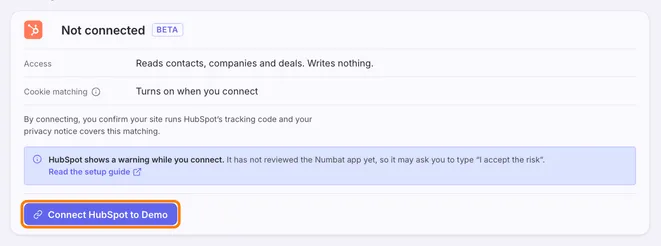
-
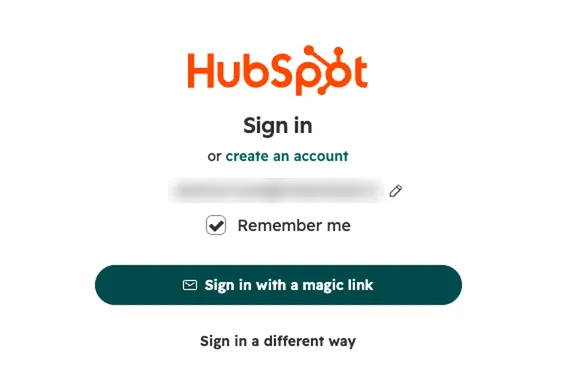
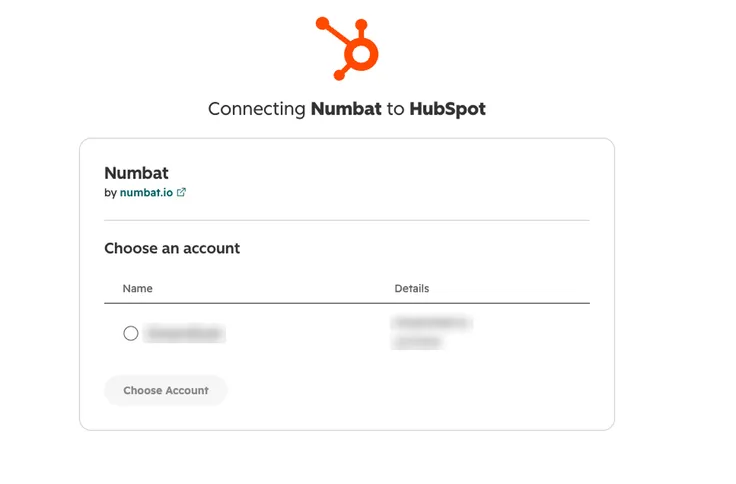
Sign in to HubSpot. If you have more than one account, choose one.
-
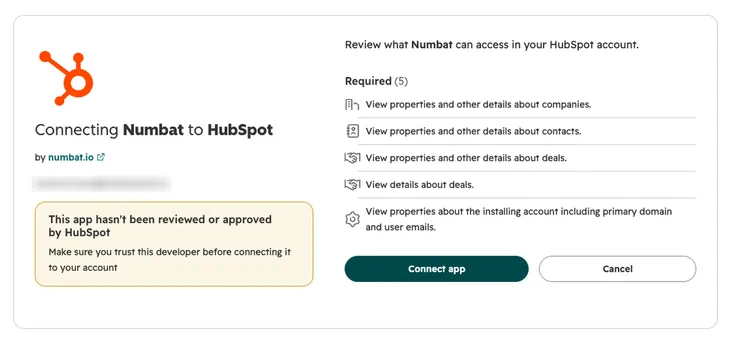
Review the permissions and choose Connect app. Numbat asks to read contacts, companies, deals, deal properties and basic account details, such as the domain.
-
HubSpot warns that the app is not listed yet. Check that the redirect domain is app.numbat.io. If asked, type I accept the risk, then choose Connect.
-
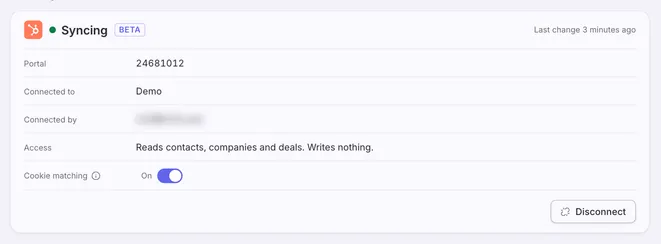
You return to Numbat. The HubSpot page reads Importing, with its progress, then Syncing, with the portal ID. A large portal takes longer.
After the import, HubSpot sends changes as they happen, and a daily check catches anything missed.
What appears where
- A person’s page in Visitors shows their CRM record and timeline.
- Ad Campaigns shows deal revenue against the campaign and ad. If you also connect Stripe, you choose which of the two it shows (see below).
Customers in your reports
When a contact reaches the customer stage in HubSpot, Numbat counts their visits from that day as customer visits. Any stage your HubSpot funnel places after customer, such as evangelist, counts too.
Customer visits get no engagement level, and they are left out of:
- visitor counts
- engagement levels and campaign verdicts in Ad Campaigns
- landing page figures
They still count in session and pageview totals, because they are real traffic.
Visits from before that day stay prospect visits, so the campaign that brought the person keeps its credit. If the contact moves back to an earlier stage in HubSpot, their later visits count as prospect visits again.
Check that it works
The card shows the connection status and the import’s progress. Once contacts have synced, it shows a match rate: how many HubSpot contacts matched a visitor Numbat has seen.
Optional: match visitors by HubSpot cookie
Connecting turns on Cookie matching. If your site runs HubSpot’s tracking code, Numbat reads its cookie to match contacts who never typed their email on your site. Without it, a contact matches a visitor only by an email address Numbat has seen.
By connecting, you confirm that your site runs HubSpot’s tracking code and that your privacy notice covers this matching. Numbat reads the cookie only for visitors who allowed identification.
To stop it, turn off Cookie matching on the HubSpot page. Turning it back on asks you to confirm again.
 Reconnecting keeps your choice.
Disconnecting turns it off, and connecting again turns it back on.
Optional: write Numbat fields to contacts
Numbat can add what it knows about each matched person to their HubSpot contact, so you can use it inside HubSpot. This is off until you turn it on.
-
Open the HubSpot integration in Numbat Turn on Write to contacts, then choose Continue to HubSpot.
-
In HubSpot, approve the app again. This time HubSpot asks you to allow edits to contacts.
-
You return to Numbat with the switch on. The row reads Adding fields to your contacts, then the number of contacts updated and when Numbat last sent.

Numbat creates a property group named Numbat in HubSpot, with nine contact properties.
| Property | What it holds |
|---|---|
| Numbat first touch channel | How the person first reached your site. |
| Numbat first touch source | The source of their first visit. |
| Numbat first touch campaign | The campaign of their first visit. |
| Numbat last touch channel | How they last reached your site. Typed and bookmarked visits do not count. |
| Numbat last touch source | The source of that last visit. |
| Numbat last touch campaign | The campaign of that last visit. |
| Numbat intent level | The highest engagement level they reached on any visit: Bounced, Skimmed, Engaged, Researching or High intent. |
| Numbat visits | How many times they visited your site. |
| Numbat first seen | The day Numbat first saw them on your site. |
Numbat writes these fields only on contacts it has matched to a visitor. A contact with no visits is left alone. Numbat writes no other field, and it never writes to a company or a deal.
A new value reaches HubSpot about 2 hours after the visit, because Numbat waits for the visit to be scored. Numbat keeps the nine fields current and overwrites edits made to them in HubSpot.
To stop, turn off Write to contacts. Numbat stops writing at once. The values already written stay in HubSpot.
When a person is erased from Numbat, Numbat clears their nine fields in HubSpot. It does this even when Write to contacts is off or you are disconnecting.
If you also connect Stripe
A sale can be both a won deal in HubSpot and a payment in Stripe, so Numbat never adds the two together. Ad Campaigns and Visitors show one of them. By default it is the one you connected first.
To change it, choose HubSpot won deals or Stripe payments under Revenue column on the HubSpot page or the Stripe page. Both pages show the same choice. You can change it at any time: nothing imported is lost, and the revenue shown changes the next time a page loads.

Disconnect HubSpot
Disconnecting removes everything Numbat imported, including CRM records on people’s pages and deal revenue in Ad Campaigns. Nothing changes in HubSpot. If you turned on Write to contacts, the values already written stay there. If you connect again, the import starts over.
- Open the HubSpot integration in Numbat
- Choose Disconnect, then Disconnect HubSpot to confirm.
- To remove the app from HubSpot too, open Settings > Integrations > Connected Apps in HubSpot, choose Numbat, then Actions > Uninstall. HubSpot’s guide to uninstalling an app has the details.
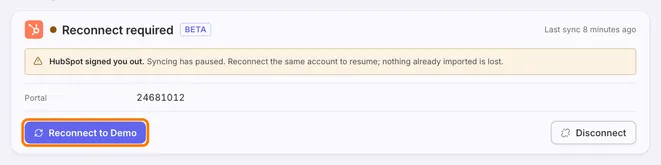
Disconnect in Numbat first. If you only uninstall in HubSpot, the card reads Reconnect required and the imported data stays in Numbat until you disconnect.
Troubleshooting
The Overview says “Your CRM has stopped syncing”
No sync has finished for over 6 hours. Check the card on the Integrations page. If it reads Import stopped, choose Reconnect to import the rest.
The Overview says “Your CRM needs reconnecting”
HubSpot no longer accepts Numbat’s access, usually because the app was
removed or the user who connected it lost access. Choose Reconnect to
The Write to contacts row says “Paused: HubSpot refused the write.”
HubSpot no longer accepts Numbat’s edits to contacts. Choose Reconnect on the row and allow the edits again. Numbat also tries again by itself after a day, and the next write that works clears the pause.
Next steps
- Consent and emission, for how HubSpot contacts feed identity matching on ad platforms.
Checked against HubSpot, October 2026.