Connect Google Ads
Optimize plan and above
One Google sign-in sets up two things:
- Spend comes in. Numbat imports what each campaign costs, so Ad Campaigns shows spend beside the traffic it bought.
- Ad Signals go out. Numbat sends Google one conversion,
Numbat_Engagement, for each visitor who reaches the engagement level you choose. Google can report it or bid on it.
Both use the same Google Ads account.
Before you begin
- Ad spend import and Ad Signals on your plan. See Plans and limits. Without Ad Signals, the same steps connect spend only.
- A Numbat role that can edit site settings. A Workspace Member cannot.
- A Google login that can open the ad account. Access through a manager account (MCC) works.
Numbat only reads your campaigns and adds one conversion action. It never changes your ads, budgets or bids.
1. Connect Google Ads
-
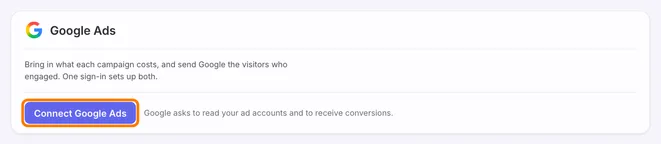
Choose Connect Google Ads.
-
Sign in to Google with a login that can open the ad account.
-
Google asks to let Numbat read your ad accounts and send conversions. Choose Allow.
Google then returns you to Numbat.
2. Pick the ad account
If your login reaches one ad account, Numbat picks it and you skip this step.
If it reaches several, Numbat asks Which ad account runs the ads for this website? Each account shows its ID, currency and time zone, and the manager account it comes through. Pick one, then choose Use and its name.
If the list is empty, the login reaches no ad account. Sign in as someone who can open it, or ask the account’s owner to add you.
3. Turn on Ad Signals
Numbat asks How should Google use the signals? Use for bidding is selected. Choose another option if you prefer, then choose Confirm.
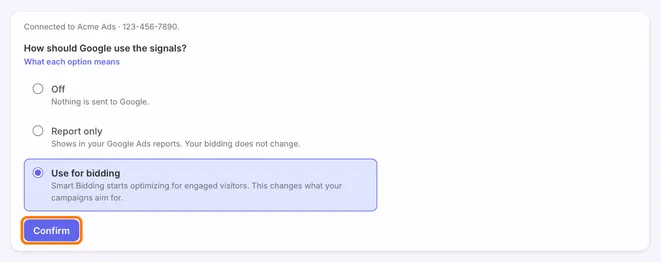
| Option | Sent to Google | In your reports | Changes your bidding |
|---|---|---|---|
| Off | No | No | No |
| Report only | Yes | Yes, in “All conversions” | No |
| Use for bidding | Yes | Yes, in “Conversions” | Yes |
On Confirm with Report only or Use for bidding, Numbat adds a
conversion action named Numbat_Engagement to the ad account. If one already
exists, Numbat uses it. With Off, Numbat adds nothing. You can change the option
at any time: choose Change beside Google uses it.
Off
Numbat sends nothing to Google.
- Visitors who qualify while signals are off are not sent later.
- If signals were on before, the
Numbat_Engagementconversion action stays in your Google Ads account. When you turn signals on again, sending starts at once.
Report only
Numbat sends the conversion, and Google shows it in your reports. Your bidding does not change.
Numbat sets Numbat_Engagement as a secondary conversion action. Google
shows a secondary action in the “All conversions” column, not in the
“Conversions” column, and does not use it for bidding.
Use this option to compare engaged visitors with your other conversions before you let Google bid on them.
One exception: if you add Numbat_Engagement to a custom goal in Google Ads,
Google uses it for bidding in that goal’s campaigns, whichever option you
choose here.
Use for bidding
Numbat sends the conversion, and Smart Bidding starts to optimize for engaged visitors. This changes what your campaigns aim for.
Numbat sets Numbat_Engagement as a primary conversion action in the
Qualified leads goal. Google shows a primary action in the “Conversions”
column. Google uses it for bidding in each campaign that uses the Qualified
leads goal.
To see which campaigns use that goal, open Google Ads, then Goals, Conversions, Summary.
4. Check that it works
On the Google Ads page in Numbat:
-
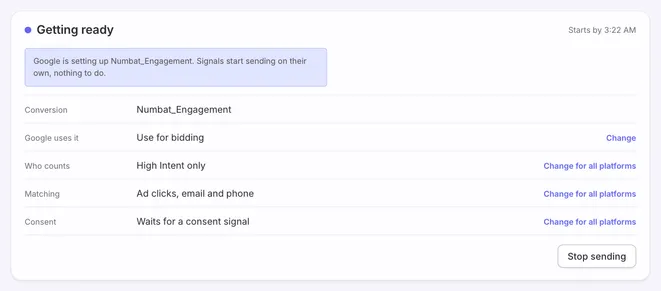
Ad Signals reads Getting ready when Numbat has just created the conversion action. Google needs some time before a new action takes data, so Numbat holds the signals and sends them on its own. The page shows when sending starts, at most six hours later. You have nothing to do.
-
After that, Ad Signals reads Sending, with when the last one went.
-
Spend reads Importing the last 90 days at first, then Updated and when.
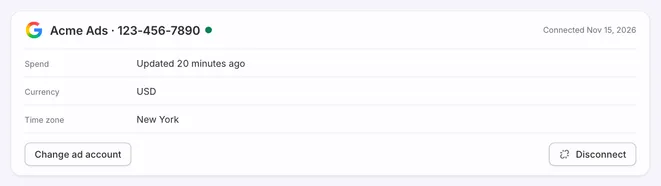
Spend then shows in Ad Campaigns. If the Google Ads page says some campaigns spent with no visits on this website, those ads are usually untagged. See Tag your ads.
What Numbat sends
For each visitor who qualifies, Numbat sends Google the ad click ID. When Matching allows it, Numbat also sends the email and phone of a known customer, hashed. Numbat never sends an IP address to Google. Who qualifies and what is sent are set for every platform, under Ad Platforms, For every platform. See Consent and emission.
Change the ad account
Under the account’s name, choose Change ad account and pick another. Spend and Ad Signals both move to it. Ad Signals moves on its own within a few minutes, and keeps how Google uses them.
Turn Ad Signals off, or stop
- To pause, choose Change beside Google uses it, then Off. See Off.
- To remove the setup, choose Stop sending. Spend keeps importing.
Numbat_Engagementstays in your Google Ads account.
Disconnect
Choose Disconnect. Spend stops updating, and Ad Signals stops sending. Spend imported so far is kept.
Troubleshooting
“Google stopped accepting this connection.” The Google sign-in expired or was removed. Choose Reconnect Google Ads and sign in again. Spend imported before then is kept, and waiting signals go out once it works.
“Allow in Google” shows under Ad Signals. You connected before Ad Signals was on your plan, so Google has not yet allowed Numbat to send conversions. Choose Allow in Google and approve it once.
Ad Signals reads “Signals are moving to” an account. You picked another ad account. Numbat moves the signals on its own within a few minutes.
See also
- Google’s guide: About primary and secondary conversion actions
- Google’s guide: About “All conversions”
- Emission status: what sent and not sent mean.
Checked against Google Ads Help and Numbat Ad Platforms, November 2026.